7 Best HDMI Over Network Extenders in 2026
Choosing among the 7 Best Hdmi Over Network Extenders in 2026 takes more than comparing maximum resolution. A display may show a sharp image in a showroom, then stutter when the signal crosses a busy office network. The right extender must suit the actual cable path, network equipment, and viewing needs.
Rob Tobias, president of HDMI Licensing Administrator, represents an important standards perspective on HDMI compatibility. A practical paraphrase—not a verbatim quotation—is: compatibility matters as much as resolution. That principle matters when an extender must handle HDCP content protection, EDID communication, audio formats, and the source devices already installed. Check whether the product uses a dedicated point-to-point link or shares an Ethernet network. Those designs behave differently. So do their setup demands.
A spec sheet can still mislead. Look beyond advertised distance: confirm the required cable category, supported bandwidth, latency, power method, and receiver count. A long cable run through a real building may perform differently from a short bench test. Weigh installation complexity, documentation, warranty, and support, too. This guide compares seven options for home theaters, meeting rooms, and digital signage, while noting where product claims need careful checking. The best choice is not always the most expensive. It is the one that works reliably with your equipment and gives you room to troubleshoot when conditions are less than ideal.
What HDMI Over Network Extenders Are and How They Work
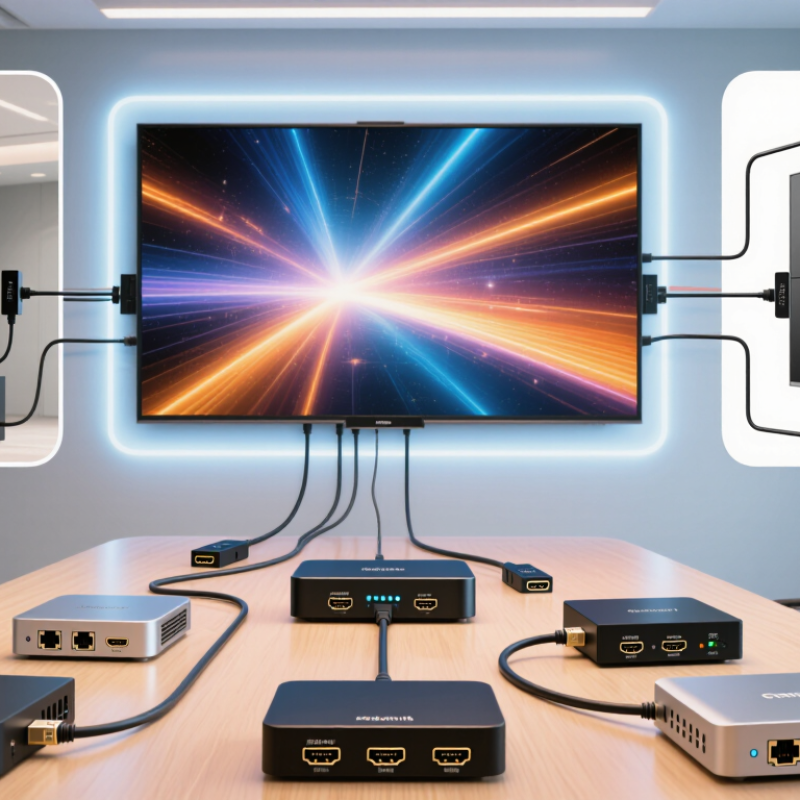
An HDMI over network extender sends video and audio from a source, such as a media player, to a distant screen. A transmitter converts the HDMI signal for travel over network cable; a receiver converts it back near the display. The cable may look like ordinary Ethernet, but that does not mean the equipment works through any office network.
Some extenders use a direct cable between transmitter and receiver. Others send signals over an IP network and may require compatible switches. That distinction matters. A long cable run can be useful in a classroom, meeting room, or home with a display across the hall. But distance ratings depend on cable quality, resolution, and installation conditions. A tight bend behind a cabinet can cause trouble.
Before choosing a unit, check supported resolution, refresh rate, audio formats, and copy-protection compatibility. Confirm whether the system needs a dedicated cable, a managed switch, or power at both ends. A stable link matters more than a feature list. Measure before mounting. I would also test the actual source and display together; specifications do not always reveal handshake delays or brief black screens. Even a simple setup can need adjustment.
Key Features to Compare When Choosing an Extender
When comparing HDMI over network extenders, check the supported resolution and refresh rate together. A device rated for 4K may not deliver the same performance at higher refresh rates. Match its specifications to the source, display, and content you actually use. Bandwidth matters. Also check whether the signal is compressed, since compression can affect fine text, gradients, or fast motion.
Distance claims need context. Confirm the required cable category and maximum run length, then consider the route between rooms. A long cable beside power wiring may behave differently from a short, clean test setup. For interactive displays or gaming, compare latency figures; even a small delay can feel noticeable. Check support for HDCP and EDID, too, especially when switching between sources with different display settings. Small details matter.
Useful extras vary by installation. IR passthrough can help control equipment in another room, while USB return may support a keyboard, mouse, or touchscreen. Power over Ethernet can reduce outlet clutter, but verify whether the extender needs a compatible network switch. I would not rely on feature lists alone: confirm what each port does and whether the receiver and transmitter must use a direct cable or can share network infrastructure. Test the intended resolution and controls over the actual cable run before mounting equipment.
The 7 Best HDMI Over Network Extenders in 2026
The seven best HDMI-over-network extenders in 2026 serve different rooms and budgets. A compact 4K/60 point-to-point kit suits a living room with one source and one display. A long-reach HDBaseT kit is better for a projector across a hall, though its stated distance depends on cable quality. An HDMI-over-IP encoder-and-decoder pair fits installations that need several screens on a managed network. Keep traffic and network capacity in mind.
A PoE-powered receiver reduces the number of power outlets near wall-mounted displays. A multi-display matrix extender helps route several sources to several screens, but setup takes more planning. A kit with USB and infrared pass-through can keep a keyboard or remote useful across the room. For a spare television or basic presentation, a 1080p extender may cost less and do the job. No extender is magic.
Check the supported resolution, refresh rate, audio formats, and copy-protection compatibility before buying. Use solid-copper Cat6 cable for demanding 4K links; avoid assuming every Ethernet cable performs alike. Test the full route before hiding cable in a wall. I would also leave slack at both ends. Small installation details get missed, even by careful people. A label on each cable can save a frustrating afternoon later.
How to Choose the Right Extender for Your Setup
Choosing an HDMI-over-network extender starts with the route between your source and display. Measure the cable path, including turns through walls, rather than estimating room-to-room distance. A long run can behave differently from a short test cable. Check whether the extender uses a dedicated point-to-point cable or supports your existing network switches; many models do not work through ordinary switches.
Match the extender’s supported resolution and refresh rate to your actual devices. A set that handles 4K at 30 Hz may not suit a gaming display running at 60 Hz. Check HDR, audio formats, and HDCP support too. These details matter when a source suddenly shows a blank screen. Look for the specified cable category and maximum distance, but treat those figures as conditions to verify, not guarantees. The cable path and installation quality can affect results.
Consider control and setup needs. Do you need remote-control signals, USB, or power at the display end? Check how the receiver is powered and whether both units need clear ventilation. Before mounting anything, test the full setup with your real source, display, and intended cable. This takes time. It may also reveal a compatibility issue that the specification sheet does not make obvious. I would not choose by range alone; that is an easy mistake to make.
Installation Steps and Network Requirements
Before installing an HDMI-over-network extender, map the route from source to display. Place the transmitter near the player and the receiver behind the screen. Connect both ends to the same managed switch, then test with short cables before securing anything. Small detail, big payoff.
Check the extender’s throughput requirements, not just its connector type. Many compressed 4K systems use a dedicated 1GbE link, while some uncompressed 4K60 formats require 10GbE or fiber. Confirm the exact format in the product specification. For copper Ethernet, keep each channel within the applicable 100-meter limit, and use correctly terminated cabling. Reserve network capacity for other traffic; a busy switch can cause dropped frames or flicker. Enable IGMP snooping when multicast is used, and configure VLANs or quality-of-service rules only when the system documentation calls for them.
Network planning matters more as video loads grow. The 2018 Visual Networking Index forecast that video would account for 82% of global IP traffic by 2022. That figure is a historical forecast, not a measurement of today’s network, but it illustrates why shared bandwidth deserves attention. Test the installed link with the intended resolution, refresh rate, and audio before closing walls. I would not assume a picture that works once will remain stable under normal network load.