

Mobile checkout can turn a crowded market stall, salon chair, or food truck counter into a working sales point. A phone or tablet paired with a card reader can help owners take payments, check stock, and send receipts without staying tied to a traditional register. But the right setup depends on how and where a business operates.
This guide to the best mobile pos systems compares options for small businesses in 2026, with attention to payment methods, hardware, software features, fees, and support. A low monthly price may look appealing, yet transaction costs or required equipment can change the real expense. Check whether a system works with your existing phone, printer, or inventory process before choosing.
The day-to-day details matter. Can staff complete a sale quickly when a line forms? Can the system keep records when the signal drops? Those questions are easy to overlook during a product demo. No single POS fits every business, and features or pricing may change over time. A polished screen is not proof of a smooth workday. Use the comparisons to narrow your choices, then confirm current terms with each provider and weigh the trade-offs against your actual routine.
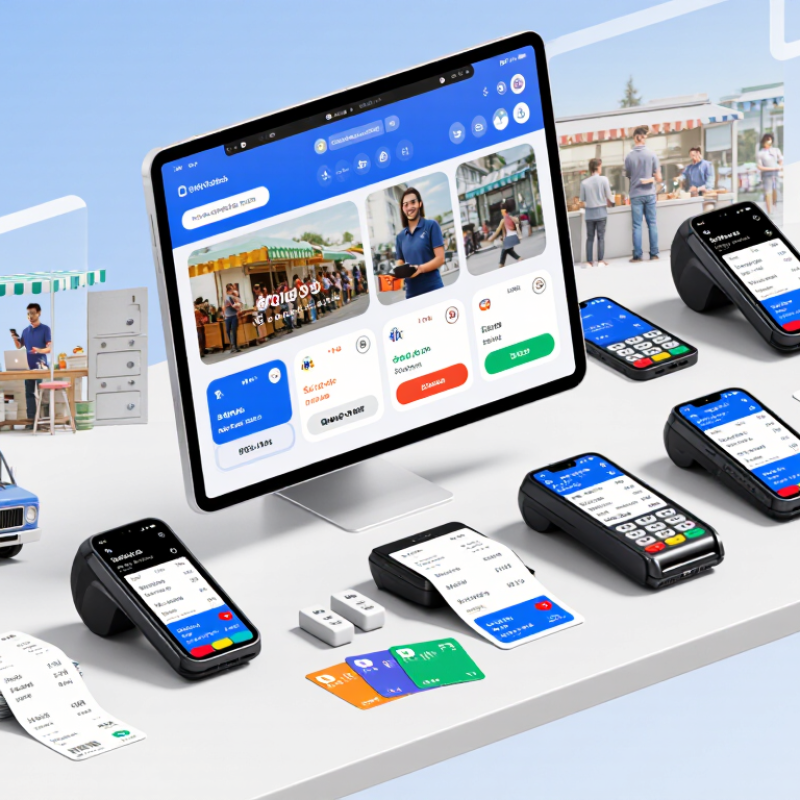
A mobile point-of-sale system combines checkout software with a phone or tablet and, often, a small card reader. It lets a business take payments away from a fixed counter: beside a market stall, at a customer’s table, or during a home visit. No bulky till. Staff select items on screen, check quantities, and show the customer the total before payment.
The reader sends card details through a payment service, which checks whether the transaction can be approved. Depending on the setup, customers may also pay by tapping a phone or using another supported method. After approval, the system can record the sale, adjust inventory, and email or print a receipt. Some systems sync sales to a central dashboard over the internet.
If the connection drops, offline payment options may be limited, so businesses should check how transactions are stored and processed before relying on them. Keep the device charged, use a secure network, and review permissions. It sounds simple, but setup takes care; product lists and tax settings can be wrong. A quick test sale helps catch mistakes before the lunch rush.
When evaluating mobile POS systems for small businesses in 2026, start with the work you need them to handle. A café may need quick modifiers and split checks; a repair shop may care more about item notes and customer history. List the tasks staff perform during a busy hour, then check how many taps each task takes. A polished demo can hide awkward steps. Test the system with realistic products, discounts, and refunds.
Next, check how it behaves away from a desk. Try a full shift on the device you plan to use, and note battery use, screen readability, and connection stability. Ask how sales are recorded if the internet drops, and when those records sync again. Review transaction fees, hardware costs, inventory limits, user permissions, and support hours. Read the terms carefully. A checklist helps, but it can miss small frustrations that slow staff down every day.
Tips: Run a short trial during a normal work period, not only in a quiet demo. Have a new employee enter an order, correct a mistake, and find a past sale. Note where they hesitate. That hesitation matters.
The best mobile POS systems for small businesses in 2026 should fit the pace of daily work, not just look impressive in a feature list. A café owner may need quick counter payments, while a market seller may prioritize a reliable wireless connection and a battery that lasts through a long shift. Small details matter. Check whether staff can find common items quickly, apply discounts accurately, and issue receipts without holding up a line.
Compare total costs, including hardware, monthly fees, and transaction charges. Ask how sales data is protected, whether access can be limited by staff role, and how the system handles refunds or a lost connection. Clear answers are more useful than broad promises. Test the checkout flow on the actual phone or tablet your team plans to use. A screen that feels simple in a demonstration can be awkward with wet hands, poor lighting, or customers waiting.
Inventory tracking and sales reports can help owners spot popular items and busy hours, but reports are only useful when information stays accurate. Some systems may require extra setup or paid features; that can be easy to overlook. Before choosing, run a few realistic transactions and check the receipt, stock count, and end-of-day figures. Notice where staff hesitate. That small pause may reveal a bigger training or workflow issue.
A mobile POS system should fit the way a small business actually sells. A market stall may need quick tap payments and a battery that lasts through a long Saturday. A service professional may value digital receipts, saved customer details, and reliable offline processing. Busy cafés often need modifiers, clear order screens, and simple staff permissions. These differences matter more than a long feature list. That matters.
Compare total costs, not just the monthly fee. Some systems charge per transaction, while others add costs for hardware, extra users, or advanced reports. Check whether the quoted rate covers your typical payment volume. Then test how quickly staff can add an item, correct a mistake, and issue a refund. A smooth demo is useful, but real checkout conditions can be less tidy. A neat comparison may miss that.
Tips: Try the system on your own phone or tablet before committing. Test it in a weak-signal area, and ask what happens when the connection drops. Cheap can cost more if essential features require upgrades. Also check how sales data can be exported; changing systems later is easier when your records remain accessible.
Estimated monthly software budget for an entry-level setup (USD)
Budget estimates are broad planning benchmarks, not quotes or a comparison of specific providers. Actual costs vary with features, payment processing, hardware, and location. Food trucks and market stalls often need simpler setups, while restaurants and multi-location retailers may require more advanced tools.
Choosing a mobile POS system starts with the way your business actually sells. A market stall, food truck, and repair shop need different tools. List your daily tasks: taking card payments, tracking stock, sending receipts, or managing staff access. Then check that the system works on your phone or tablet and supports the payment methods your customers use. A bright screen can be hard to read outdoors, while a weak connection may slow checkout. Test the device where you work, not just at a desk. A lower monthly cost is not always the better deal if essential features cost extra.
Setup starts with reliable hardware, a charged battery, and a secure Wi-Fi or cellular connection. Add a few common items, enter accurate prices, and check tax and receipt settings before loading your full catalog. Run a small test sale, then confirm that the payment, receipt, and inventory record all appear correctly. Test it twice. Train staff on refunds, connectivity problems, and end-of-day checks. The first setup rarely feels tidy; product names and stock counts often need another pass. Keep it simple. Leave time to review the settings after your first busy shift, when real use reveals what the test missed.

